
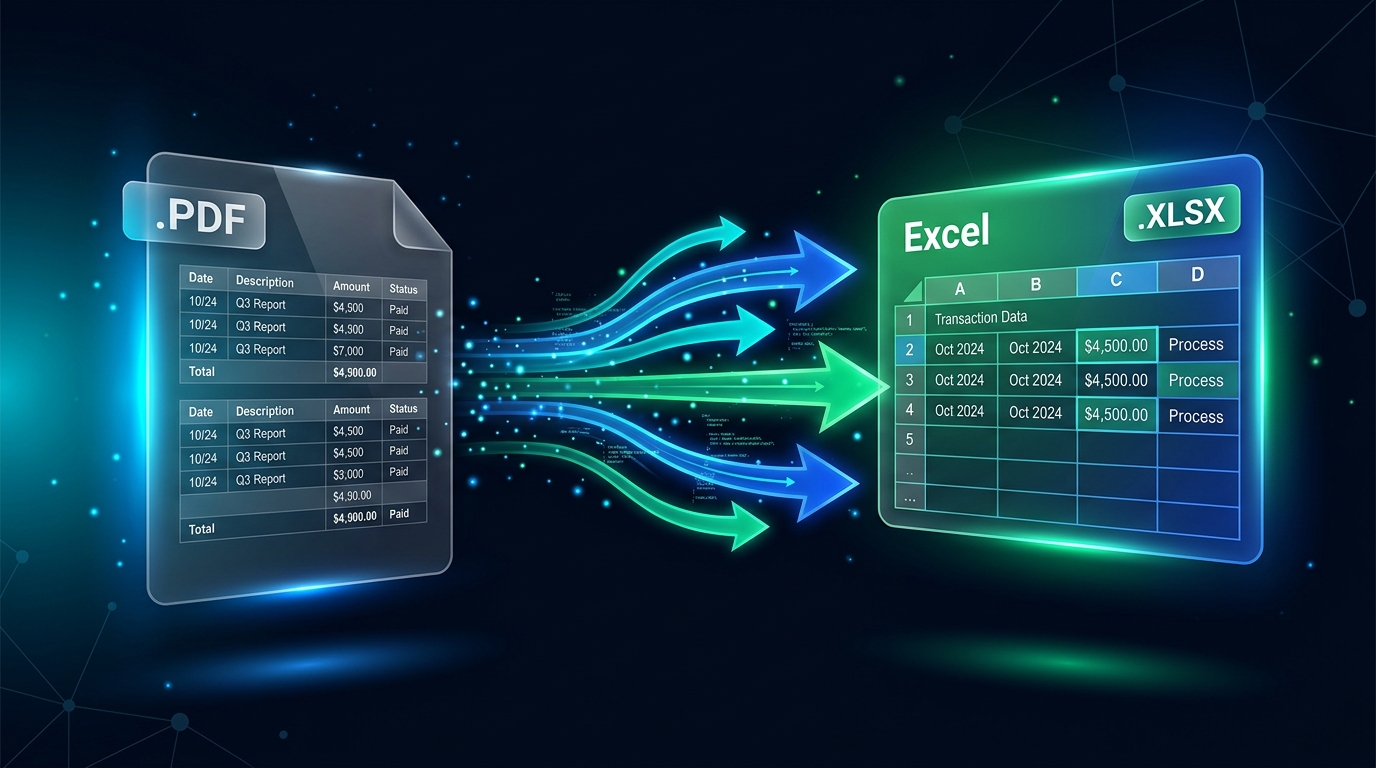
How to Convert PDF to Excel Online: Extract Tables Into an Editable Spreadsheet
You Have Data in a PDF, But You Need a Spreadsheet
PDFs are convenient for sharing reports, invoices, statements, schedules, and other documents, but they are not always the easiest format for working with structured data. If you need to sort rows, change values, calculate totals, or analyze a table, copying everything manually can take a lot of time.
Converting PDF to Excel gives you an editable spreadsheet that can be easier to filter, organize, calculate, and reuse. The important step is to review the converted workbook carefully because complex PDF layouts do not always translate perfectly into spreadsheet cells.
Quick Solution: Convert PDF to Excel Online
Use the ToolKiDukan PDF to Excel tool to turn supported PDF tables and data into an editable spreadsheet:
Upload the PDF, start the conversion, download the Excel file, and review the rows, columns, numbers, and formatting before using the data.
How to Convert PDF to Excel Online
Step 1: Prepare the PDF
Choose the PDF that contains the data you need. If you have multiple versions, confirm that you are using the correct and most recent document.Step 2: Open the PDF to Excel Tool
Open the ToolKiDukan PDF to Excel converter in your browser.Step 3: Upload the PDF
Select the PDF you want to convert. If it contains confidential financial, customer, or business information, review the tool's current privacy and file-handling information before uploading it.Step 4: Convert the PDF
Start the conversion and allow the tool to generate the spreadsheet.Step 5: Download the Excel File
Download the resulting spreadsheet and open it in Excel or another compatible spreadsheet application.Step 6: Check the Converted Data
Review headers, rows, columns, dates, currency values, decimal points, negative numbers, totals, and other important fields before relying on the spreadsheet.Why Convert PDF to Excel?
What Types of PDFs Work Best for PDF to Excel Conversion?
Text-based PDFs with clearly structured tables are generally easier to convert than documents with complicated layouts. Tables with consistent columns and rows are usually easier to map into spreadsheet cells.
Scanned PDFs, multi-column reports, tables with merged cells, unusual fonts, and documents with complex visual positioning may require more cleanup after conversion.
PDF to Excel for Scanned Documents
A scanned PDF may contain an image of a table rather than selectable text. Extracting spreadsheet data from these files can require OCR, and the accuracy depends on image quality and document structure.
If the spreadsheet will be used for financial, legal, inventory, or other important records, carefully compare the converted values with the source PDF. Pay particular attention to numbers, dates, account codes, and totals.
How to Get Better PDF-to-Excel Results
What to Check After Converting PDF to Excel
What If the PDF Is Too Large?
If the source PDF is very large, remove irrelevant pages or compress a copy before processing.
What If You Need to Edit the Original PDF First?
If you need to change the source document before extracting its data, you may want to convert the PDF to Word first, make the required changes, and then prepare the final document.
Common PDF to Excel Problems
Columns Are Misaligned
Compare the spreadsheet with the original PDF and move values into the correct columns. Complex layouts and merged cells are common causes of alignment problems.Some Numbers Are Wrong
Check decimal points, commas, currency symbols, negative signs, and digits that may have been misread. Important financial or operational data should always be verified against the source.The PDF Is a Scan
Image-based PDFs may require OCR. Review the converted spreadsheet closely because OCR can misinterpret characters and numbers.The Table Looks Fine but Formulas Do Not Work
Data imported from a PDF may be stored as text rather than numeric values. Check the cell formats and convert values to the appropriate number or date types before calculating.The Spreadsheet Contains Extra Text
Headers, footnotes, page numbers, or repeated labels may be extracted along with the table. Remove unnecessary content before analysis.Practical Tips for Converting PDF to Excel
Frequently Asked Questions
How can I convert PDF to Excel online?
Open a PDF-to-Excel converter, upload your PDF, start the conversion, download the spreadsheet, and check the resulting cells against the original document.Can I convert a PDF table to Excel?
Yes. PDF-to-Excel conversion is particularly useful for structured tables. The quality of the result depends on how clearly the table is represented in the source PDF.Can I convert a scanned PDF to Excel?
Scanned PDFs may require OCR to recognize the table's text. Always verify the converted spreadsheet carefully, especially when it contains important numbers.Will PDF to Excel preserve the table formatting?
A converter attempts to recreate the table structure, but complex formatting, merged cells, and visual layouts may require manual cleanup.Why are numbers sometimes converted incorrectly?
PDFs store information primarily for visual presentation, while spreadsheets require structured cell values. Characters such as decimal points, commas, currency symbols, and minus signs can therefore require verification.Can I convert only selected pages to Excel?
If direct page selection is not available, extract the pages containing the relevant tables first and then convert the smaller PDF.Can I sort and filter the converted data immediately?
You can, but first check that columns, values, and data types were converted correctly. Sorting a dataset with misaligned rows can make the problem harder to detect.Should I keep the original PDF after converting it?
Yes. Keep the original PDF so you can verify the spreadsheet and repeat the conversion if necessary.Final Thoughts
Converting PDF to Excel is a practical way to turn fixed document data into a spreadsheet you can edit, sort, filter, and analyze. It is especially useful for tables found in reports, statements, invoices, schedules, and other structured documents.
The most important part of the process is verification. After conversion, check the columns, numbers, dates, totals, and other critical information against the original PDF before using the spreadsheet for decisions or reporting.
Use the ToolKiDukan PDF to Excel tool:
👉 Convert PDF to Excel with ToolKiDukan