
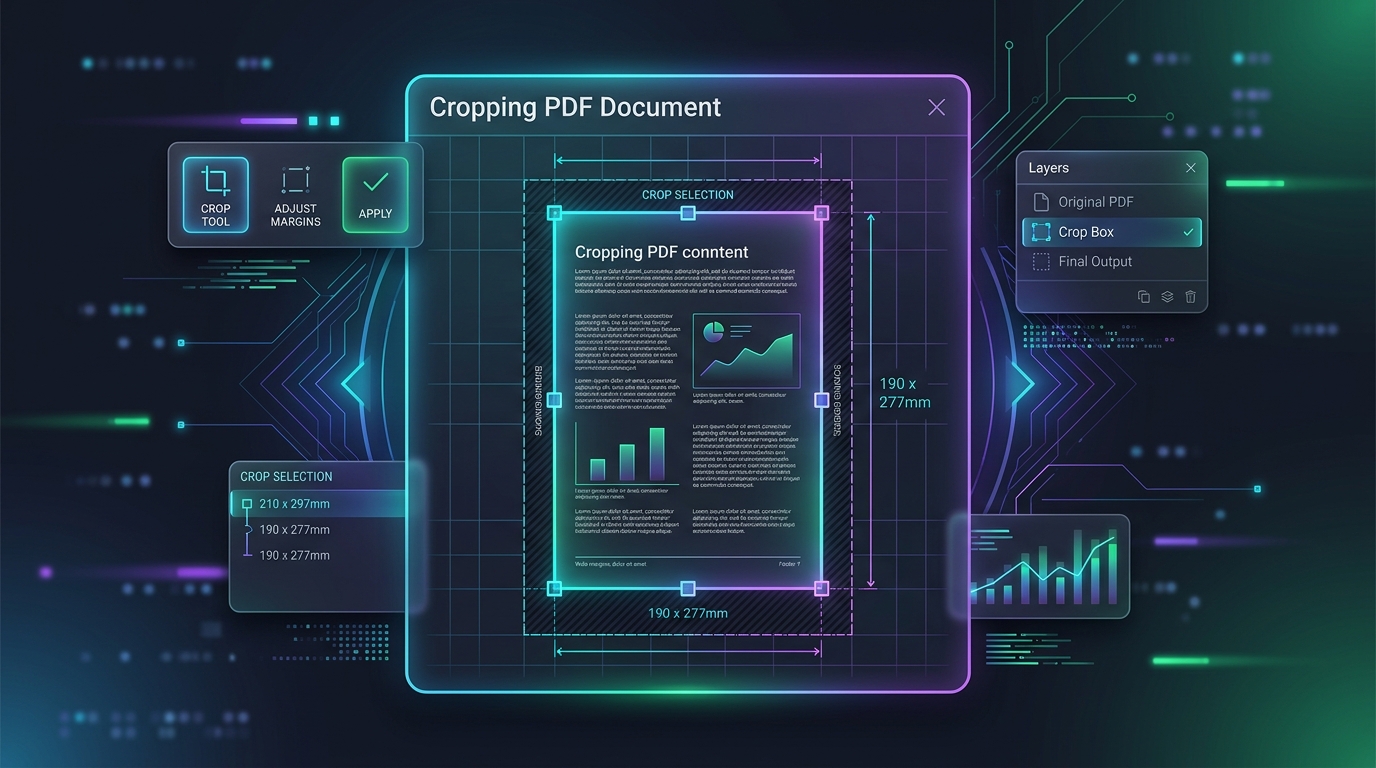
How to Crop a PDF Online: Remove Margins and Resize Pages
PDF pages can look unnecessarily large because of wide white margins, scanned borders, extra space around a document, or content captured outside the area you actually need. If you want a cleaner-looking file or need to make a document fit a particular layout, cropping the PDF can help.
The good news is that you usually do not need to recreate the document. You can crop PDF pages online, remove unwanted edges, and keep the important content intact.
Quick Solution: Crop Your PDF Online
Use ToolKiDukan's PDF Crop tool to adjust the visible page area without rebuilding the document from scratch.
- This is especially useful when a PDF has:
- Oversized white margins
- Scanner borders or shadows
- Empty space around screenshots
- Content positioned too far from the page edges
- Inconsistent page boundaries
How to Crop a PDF Online
1. Upload Your PDF
Open the PDF crop tool and upload the document you want to trim.Before making changes, keep an untouched copy of the original PDF. This gives you a backup if you later need the original page dimensions.
2. Review the Page Boundaries
Look at the page preview and identify the unwanted margins or empty areas surrounding the useful content.- Pay particular attention to:
- Headers
- Footers
- Page numbers
- Signatures
- Stamps
- Images
- Tables
- Footnotes
3. Set the Crop Area
Adjust the crop boundaries so that the important content remains inside the page.The goal isn't to make the page as small as possible. The goal is to remove unnecessary space while keeping everything you need.
4. Apply the Crop
Confirm the crop settings and apply them to the appropriate pages.If your PDF contains pages with different layouts, don't assume that one crop setting will work perfectly for every page.
5. Download and Check the Result
Save the cropped PDF and open it again.Quickly inspect every page, especially pages containing content close to the original edges. Check the document before printing, submitting, or sharing it.
Why Would You Crop a PDF?
- Cropping a PDF can be useful for several common situations:
- Removing large white margins
- Trimming borders left behind by scanning paper documents
- Removing unnecessary blank space around diagrams or screenshots
- Making content occupy more of the visible page
- Preparing pages for printing
- Creating a cleaner digital document
- Standardizing pages before combining them into another PDF
Crop PDF vs. Resize PDF: What's the Difference?
Cropping and resizing are related but not identical.
| Feature | Description |
|---|---|
| Cropping | Changes the visible area of a page by removing unwanted edges or margins. |
| Resizing | Changes the page dimensions or scales content to fit another page size. |
For example, if a scanned document has several centimeters of empty space around the actual paper, cropping can remove that excess area. If you instead need to convert an A4 page into a different paper format, you're dealing more with page resizing or scaling.
Common Situations Where PDF Cropping Helps
Scanned Documents With Scanner Borders
Scanned pages can include dark edges, shadows, or large areas outside the actual paper.Cropping can make the final PDF look much cleaner and more professional.
Screenshots Saved as PDF Pages
A screenshot may contain browser controls, empty space, or surrounding areas that aren't part of the information you want to share.Cropping lets you focus the page on the relevant content.
Documents With Oversized Margins
If content occupies only a small portion of every page, trimming unnecessary margins can improve readability and reduce visual clutter.Presentation and Publishing Workflows
Cropping can also be part of a larger PDF preparation workflow.- For example, you might crop pages before:
- Organizing them
- Merging multiple PDFs
- Adding page numbers
- Applying a watermark
- Compressing the final document
- Protecting the document before sharing
How to Crop a PDF Without Cutting Off Important Content
One of the biggest mistakes when cropping a PDF is trimming too aggressively.
- Use these precautions:
- Preview the entire page before applying the crop.
- Leave enough space around text so letters and punctuation aren't clipped.
- Check headers and footers separately.
- Be careful with signatures, stamps, and QR codes near the edge.
- Inspect images and tables that extend close to the page boundary.
- If pages have different layouts, inspect them individually.
- Always open the finished PDF after cropping.
A few seconds of checking can prevent an important piece of information from being cut off.
Can You Crop Only Certain PDF Pages?
Sometimes you don't want to change the entire document.
- For example, imagine a report containing:
- A scanned cover page
- Several standard text pages
- An appendix with different page dimensions
The cover page may have large scanner borders while the other pages are already correctly sized.
In this situation, cropping only the affected pages can preserve the existing layout of the rest of the document.
If your PDF tool supports page-specific cropping, use that option whenever different pages require different treatment.
What to Do If the Cropped PDF Looks Wrong
Text or Images Are Cut Off
Adjust the crop boundary and leave more space around content close to the page edge.Some Pages Still Have Large Margins
Those pages may use a different layout or page size. Check them individually instead of applying the same crop everywhere.The Page Looks Too Small
Avoid trimming too aggressively.Cropping removes the visible page area; it doesn't automatically make every piece of content larger.
Printing Changes the Appearance
Check the PDF's page dimensions and your printer's scaling settings before printing.A correctly cropped PDF can still print differently if the printer is configured to automatically scale or fit the page.
Practical Tips for Better PDF Cropping
report-cropped.pdf so you can distinguish the edited file from the original.Useful PDF Workflows After Cropping
Cropping is often just one step in a larger PDF workflow.
After cropping, you may want to remove unnecessary pages, reorganize the document, reduce its file size, add page numbers, or protect it before sharing.
- Useful internal links for ToolKiDukan include:
- 👉 Remove PDF pages
- 👉 Organize PDF pages
- 👉 Compress PDF
- 👉 Add PDF page numbers
- 👉 Protect PDF with a password
Frequently Asked Questions
What does cropping a PDF do?
Cropping reduces the visible page area by removing unwanted edges or margins. It is useful for cleaning up scanned documents, screenshots, and pages with excessive whitespace.Can I crop a PDF online for free?
Yes, online PDF crop tools can let you trim page boundaries without installing desktop software. Check the tool's current limits and supported file types before processing a large document.Will cropping a PDF delete the text?
Cropping removes the area outside the selected page boundary. Content positioned inside the crop area remains visible, so always preview the result before finalizing it.Can I crop all pages of a PDF at once?
That depends on the PDF tool and the document layout. If all pages have similar margins, applying a consistent crop can be efficient. Mixed layouts may require page-specific adjustments.Does cropping reduce PDF file size?
Cropping can change the visible page area, but it shouldn't be treated as a dedicated PDF compression method. If reducing file size is your main goal, use a PDF compression tool separately.What is the difference between cropping and removing PDF pages?
Cropping changes the visible boundaries of an existing page. Removing pages deletes entire pages from the document. They solve different problems and can be used together.Final Thoughts
If your PDF looks too spacious, has scanner borders, or contains unnecessary margins, cropping is often the simplest way to clean it up.
The key is to trim only the unwanted area while protecting text, images, signatures, tables, and other important content near the edges.
For a straightforward workflow, open ToolKiDukan's PDF Crop tool, upload your file, adjust the page boundaries, apply the changes, and review the finished PDF before sharing or printing.