
How to Extract Pages from a PDF Online: Save Only the Pages You Need
You Have a Long PDF, But You Only Need a Few Pages
A PDF can contain dozens or hundreds of pages when you only need a small section. Maybe you need three pages from a report, a certificate from a collection of documents, or a few pages from a scanned application.
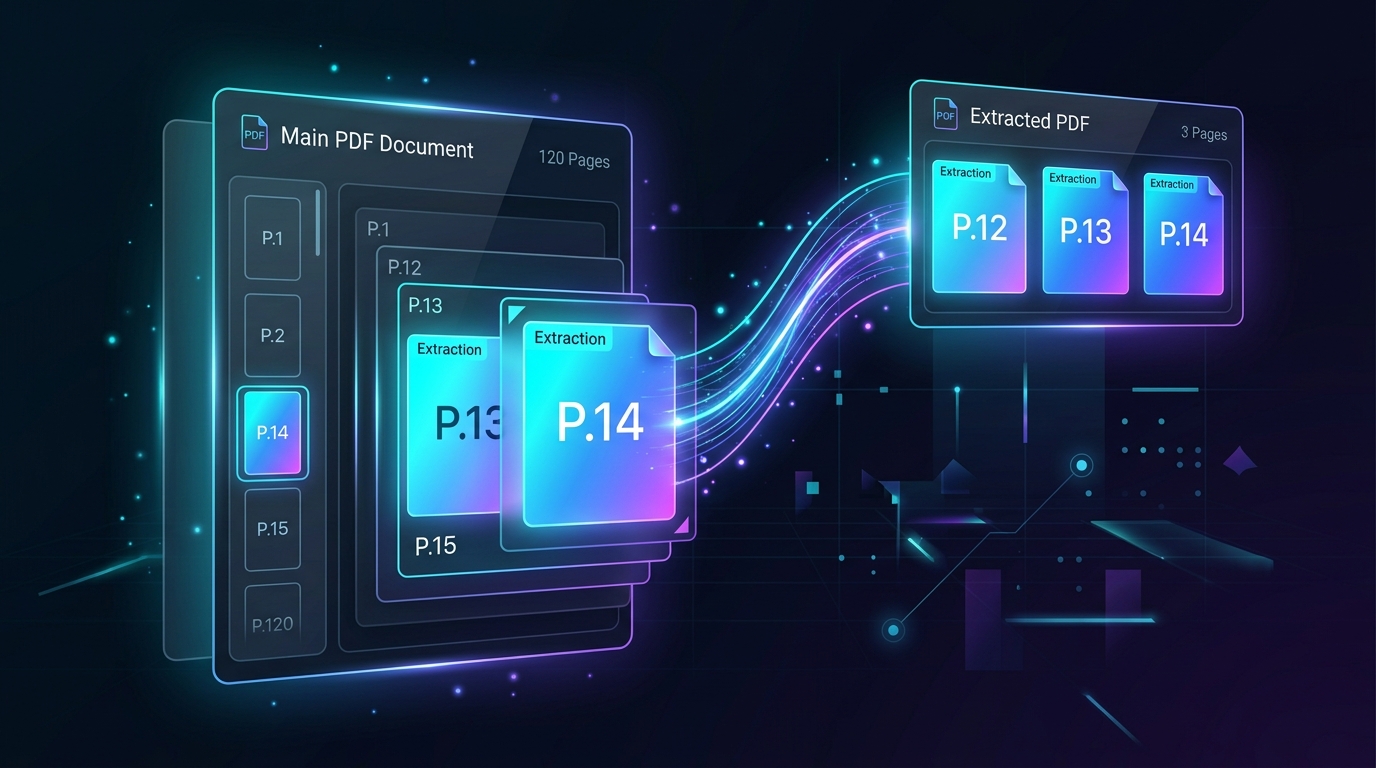
Sending the entire PDF can make sharing and uploading harder. Instead, you can extract the pages you need and create a new PDF containing only those pages.
Quick Solution: Extract PDF Pages Online
Use the ToolKiDukan PDF Extract Pages tool to create a new PDF from selected pages:
👉 ToolKiDukan PDF Extract Pages
Upload your PDF, select the pages you want to keep, create the new document, and download the extracted PDF.
How to Extract Pages from a PDF Online
Follow these steps to turn selected pages from a large PDF into a separate document.
Step 1: Open the PDF Extract Pages Tool
Open the ToolKiDukan PDF Extract Pages tool in your browser and prepare the PDF you want to work with.Step 2: Upload the PDF
Select the original PDF. Keep a copy of the source file so you can return to it if you need a different set of pages later.Step 3: Select the Pages You Need
Identify the pages that should appear in the new PDF.For example, if you need pages 12, 13, 14, and 20, select those pages rather than removing every other page manually.
Step 4: Create the New PDF
Start the extraction process to create a separate PDF containing the selected pages.Step 5: Download and Check the Extracted PDF
Open the new PDF and confirm that all required pages are present and that they appear in the expected order.Why Extract Pages From a PDF?
How to Extract Specific Pages From a PDF
The easiest approach is to decide what you need before editing the document.
For example, if a 50-page PDF contains the information you need on pages 7, 8, and 25, extract those pages into a new document.
Before creating the final file, double-check the page numbers. A printed page number inside the document may not match the PDF viewer's page position.
PDF Page Numbers Can Be Confusing
A document might show a printed page number of 1 on its first content page, while the PDF viewer counts a cover page as page 1. This can shift the numbers you expect.
When selecting pages, look at the actual page preview or document content instead of relying only on printed numbers.
Extract Pages vs Remove Pages
Both methods can create a shorter PDF, but they solve different problems:
| Tool | Purpose |
|---|---|
| Extract Pages | Use when you want to keep only a selected group of pages in a new document. |
| Remove Pages | Use when you want to keep most of the document and delete a few unwanted pages. |
Extract Pages vs Split PDF
These tools serve different needs:
| Tool | Purpose |
|---|---|
| Extract Pages | Use when you need a specific selection of pages. |
| Split PDF | Use when you want to divide a large document into multiple sections or files. |
What to Check Before Extracting Pages
Confirm the Required Pages
Write down the pages you need before starting. This reduces the chance of forgetting an important page.Check Related Pages
Some information may continue onto the next page. Make sure you are not extracting only the first page of a section when the following page is also necessary.Keep the Original PDF
Always preserve the source document so you can create another version later.What If the Extracted PDF Is Too Large?
If the selected pages contain high-resolution scans or large images, the new PDF can still be bigger than an upload limit.
Compress the extracted PDF with ToolKiDukan PDF Compress:
What If You Need to Reorder the Extracted Pages?
If the pages need to appear in a different sequence, plan the desired order before creating the final document.
If you have separate PDFs that need combining afterward, you can use the ToolKiDukan PDF Merge tool:
Common Problems When Extracting PDF Pages
The Wrong Pages Were Selected
Return to the original PDF and check the page previews carefully. Create a new extraction using the correct pages.An Important Page Is Missing
Check whether the missing information continues onto another page. Extract the additional page if it is required.The Extracted PDF Is Still Too Large
Compress the resulting PDF or reduce the number of pages if the submission rules allow it.The Page Order Is Not What You Expected
Check the selection order and the final document. If you need to combine or rearrange separate files, use a PDF merge tool afterward.Practical Tips for Extracting PDF Pages
Frequently Asked Questions
How can I extract pages from a PDF for free?
Use an online PDF page extraction tool. Upload the PDF, select the pages you need, create the new document, and download it.Can I extract multiple pages from a PDF?
Yes. You can select multiple pages and create a new PDF containing those pages.Can I extract non-consecutive pages from a PDF?
If the tool supports individual page selection, you can choose pages that are not next to each other, such as pages 2, 8, and 15.What is the difference between extracting and removing PDF pages?
Extracting creates a new document from selected pages. Removing pages keeps the rest of the original document while deleting unwanted pages.Can I extract pages from a scanned PDF?
Yes. Scanned PDFs can be used when you need to create a separate document from selected scanned pages.Will extracting pages change my original PDF?
Keep the original PDF separately. The extracted document is a new file, so your source document remains available for future use.How do I extract a few pages from a very large PDF?
Upload the large PDF, select only the pages you need, create the extracted PDF, and review the result. This is often more convenient than sending the entire document.Final Thoughts
When you need only a few pages from a large PDF, extracting those pages is often the simplest solution. It creates a focused document that is easier to share, upload, store, and review.
Identify the required pages carefully, keep the original PDF as a backup, and check the extracted document before sending it. If the new file is still too large, compress it before uploading.
Use the ToolKiDukan PDF Extract Pages tool:
👉 Extract PDF Pages with ToolKiDukan