
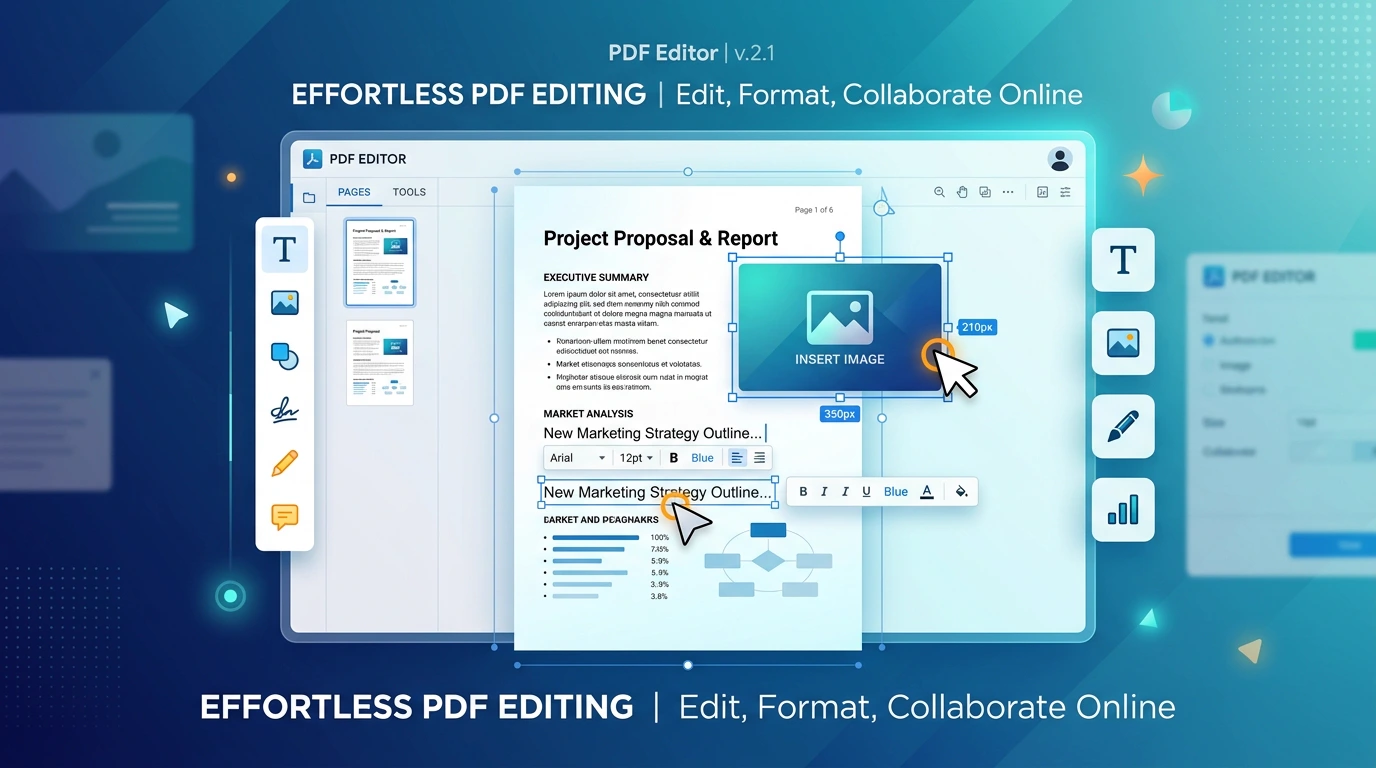
How to Edit a PDF Online: Add Text, Images, and Make Changes
PDFs are designed to preserve a document's layout, which is useful when sharing or printing files but can make small changes frustrating. You may need to correct a line of text, add information to a document, insert an image, or make a last-minute update without recreating the entire file.
Instead of converting the PDF into another format and rebuilding it, you can use an online PDF editor for many common changes. This guide explains how to edit a PDF online, what kinds of edits are practical, how to avoid common formatting problems, and when another PDF tool is a better choice.
Quick Solution: Edit Your PDF Online
Start with ToolKiDukan's PDF Edit tool when you need to make supported changes directly to a PDF.
How to Edit a PDF Online
Follow these steps to make changes directly to your PDF document:
Step 1: Upload the PDF
Open the PDF editing tool and upload the file you want to change. Keep a copy of the original before editing.Step 2: Identify the Changes You Need
Decide whether you need to change text, add content, place an image, or make another supported adjustment. Knowing the exact change helps you avoid unnecessary edits.Step 3: Make the Edits
Use the available editing controls to add or modify the required content. Work carefully around existing text, tables, images, and other page elements.Step 4: Review Each Edited Page
Check alignment, spacing, font appearance, images, and anything close to the page edges. Small changes can sometimes affect the visual balance of a PDF, so don't skip this step.Step 5: Save and Verify the Final PDF
Export the edited document and open the final file separately. Confirm that:What Can You Edit in a PDF?
The exact capabilities depend on the PDF editor, but common editing tasks can include:
When Should You Edit a PDF Instead of Converting It?
If you only need a few changes, editing the existing PDF is often more efficient than converting it to Word or another format, making changes, and converting it back.
For example, if a completed report needs a short correction or an additional piece of information, direct PDF editing can preserve the original layout and reduce unnecessary conversion steps.
However, if you need to completely rewrite a long document, a word processor may be more convenient. The right workflow depends on how extensive the changes are.
| Approach | Best Suited For | Advantages |
|---|---|---|
| Direct PDF Editing | Minor typos, adding photos, dates, annotations | Preserves exact page design and requires no format conversion |
| Convert to Word/Docs | Full text rewrites, restructuring long reports | Full freedom for text reflow, multi-page layout revisions |
Common Reasons People Need to Edit a PDF
How to Edit a PDF Without Ruining the Layout
Follow these practices:
Editing Text in a PDF: What to Watch For
Text editing can be more complicated than it looks because PDFs preserve positioning rather than behaving exactly like traditional word-processing documents.
Watch for these issues:
What If the PDF Is a Scanned Document?
A scanned PDF is often made from page images rather than selectable text. That means directly changing existing words may require a different workflow from editing a digitally created PDF.
If your goal is to create a searchable or editable version of a scanned document, consider using a PDF scanning or text-recognition workflow first. Once the content is in a suitable format, you can make the required changes and produce the final PDF.
Related ToolKiDukan tool: PDF Scan
When Another PDF Tool Is Better
Not every PDF problem requires a PDF editor. Using a tool designed for the specific task can be faster and less error-prone:
| Task | Dedicated Tool | When to Use Instead of an Editor |
|---|---|---|
| Delete Pages | Remove Pages | Removing blank sheets, duplicate forms, or unused pages |
| Change Sequence | Organize PDF | Moving pages into chronological or logical order |
| Remove Borders | Crop PDF | Eliminating oversized white margins or scanning shadows |
| Reduce Size | Compress PDF | Shrinking files that exceed upload or email attachment limits |
| Security | Protect PDF | Encrypting confidential files with access passwords |
Common PDF Editing Problems and Solutions
The Text Does Not Match the Original
Try to match the original font size, spacing, and positioning. If the exact font is unavailable, keep the replacement visually consistent.The New Content Overlaps Existing Content
Move the inserted element or reduce its size. Leave enough breathing room around nearby text and images.The PDF Looks Different After Saving
Open the exported PDF in another viewer and inspect the affected pages. Export or save the document again if necessary.The Document Is Difficult to Edit
It may contain scanned pages, protected content, or a complex layout. Consider a specialized workflow instead of repeatedly attempting the same edit.The Final PDF Is Too Large
Editing can sometimes change the file size. If the completed document is too large, run it through a PDF compression workflow.Practical Tips for Editing PDFs Online
invoice-updated.pdf or report-final.pdf.Frequently Asked Questions
Can I Edit a PDF Online Without Converting It?
Yes. Online PDF editors can handle many common changes directly in the PDF, so you don't always need to convert the document first.Can I Edit PDF Text Online?
Many PDF editing tools support text-related changes, but the exact capabilities depend on the document and editor. Scanned PDFs and complex layouts may require a different workflow.Can I Edit a PDF for Free?
Some online PDF editors offer free editing capabilities, although limits can vary by tool, file size, or feature. Check the tool's current options before starting a large job.Why Can't I Edit the Text in My PDF?
The PDF may be scanned, protected, or built from page images. In those cases, the text may not behave like editable digital text.Is Editing a PDF the Same as Converting PDF to Word?
No. Editing a PDF changes the existing PDF, while converting it to Word creates an editable word-processing version. Conversion can be useful for extensive rewriting, while direct editing is often better for smaller changes.Should I Edit a PDF Before or After Compressing It?
For many workflows, make your content changes first and compress the final version afterward. This gives you a clean final file to optimize for sharing or uploading.Final Thoughts
Editing a PDF online is useful when you need to make targeted changes without rebuilding an entire document. For small corrections, added information, or supported visual changes, direct PDF editing can save time and preserve the original layout.
Start with the smallest change necessary, review the document carefully, and keep your original PDF as a backup. For other jobs such as cropping, removing pages, organizing pages, compressing, or protecting a document, use the PDF tool designed specifically for that task.