
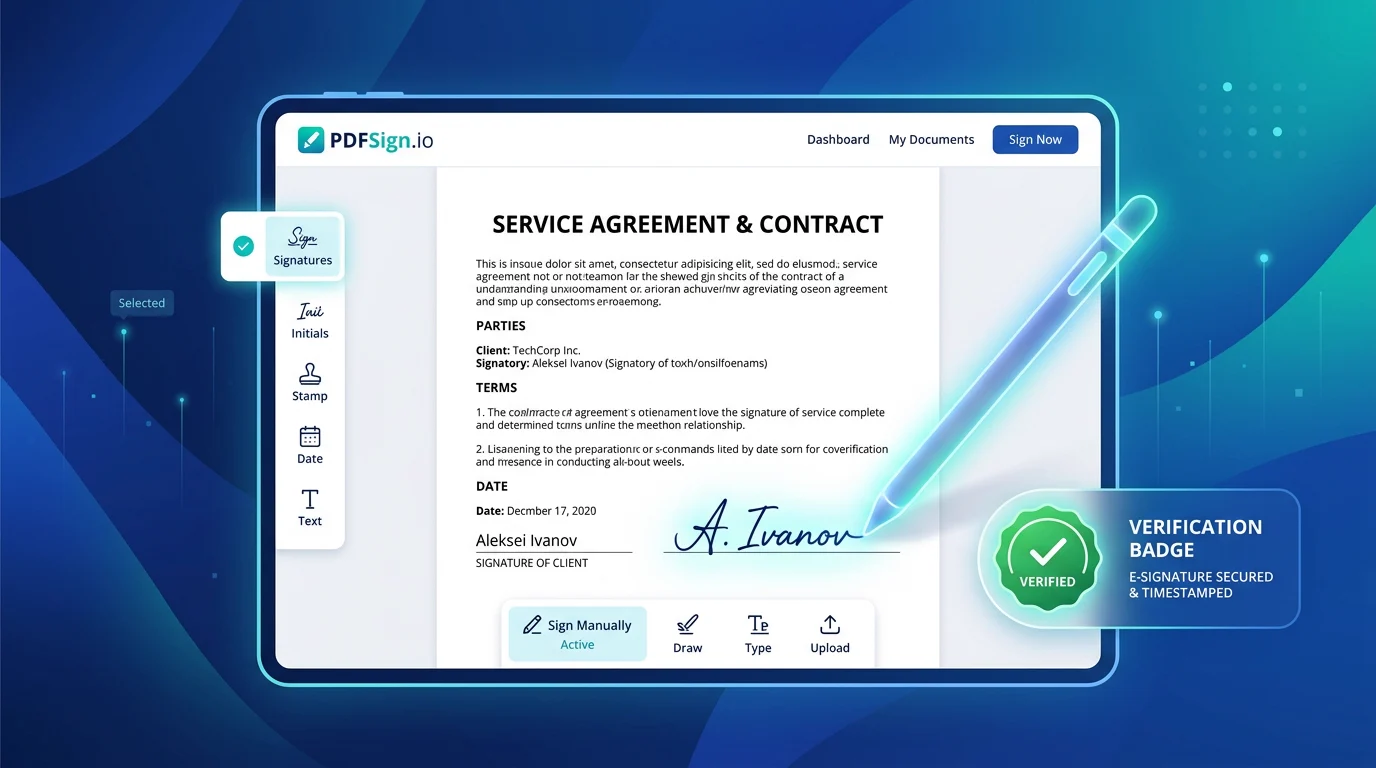
How to Sign a PDF Online: Add Your Signature and Send It
Signing a PDF does not always require printing a document, signing it by hand, scanning it, and sending it back. For many everyday documents, you can add a signature digitally and keep the entire workflow on your computer or phone.
This is useful for forms, agreements, applications, invoices, approvals, declarations, and other documents that need a signature before they can be submitted or shared. The important part is choosing the right signing method for the document and checking the finished PDF before sending it.
Quick Solution: Sign Your PDF Online
Use ToolKiDukan's PDF Sign tool when you need to add a signature to a PDF and prepare the completed document for sharing or submission.
How to Sign a PDF Online
Follow these steps to sign your document online:
Step 1: Open the PDF Signing Tool
Open the PDF signing tool and prepare the document you need to sign. Keep an untouched copy of the original PDF before making changes.Step 2: Upload Your PDF
Upload the document and wait for its pages to load. Review the file so you know exactly where the signature needs to go.Step 3: Add Your Signature
Use the available signing option to add your signature. Depending on the workflow, this may involve creating a signature or placing an existing signature element on the page.Step 4: Position the Signature Correctly
Place the signature inside the designated area. Avoid covering nearby instructions, names, dates, checkboxes, or other required information.Step 5: Review the Completed PDF
Check the signature size, position, page number, and surrounding content. Make sure the signature is visible and nothing important has been accidentally covered.Step 6: Save the Signed PDF
Save or download the completed document. Open the saved file again before submitting it to confirm that the signature and other document content are displayed correctly.When Is Signing a PDF Online Useful?
Online PDF signing is particularly convenient when a document needs a signature but there is no practical reason to print a physical copy. Common examples include:
Electronic Signature vs. Digital Signature
The terms electronic signature and digital signature are sometimes used interchangeably, but they can describe different technologies.
An electronic signature generally refers to an electronic indication of a person's intent to sign, while a digital signature can involve cryptographic verification and a certificate-based identity mechanism.
For routine documents, the receiving organization may specify exactly what type of signature it accepts. If the document requires a particular legally recognized signature method, follow the recipient's instructions rather than assuming that every electronic signature is equivalent.
| Feature / Aspect | Electronic Signature (e-Sign) | Digital Signature (Cryptographic) |
|---|---|---|
| Primary Mechanism | Electronic mark, typed name, or drawn signature indicating intent | Cryptographic hash backed by digital certificates (PKI) |
| Verification Method | Email confirmation, audit log, IP address verification | Certificate Authority (CA) validation and encrypted public key |
| Common Use Cases | General contracts, permission slips, invoices, client approvals | High-stakes legal filings, government tenders, court submissions |
| Setup Required | Immediate online signature creation | Requires cryptographic certificates and token/smart-card setup |
How to Sign a PDF Without Covering Important Information
A signature should fit naturally into the designated signature area. Before saving the document, check the space around it:
What If the PDF Is a Form?
If the PDF is a fillable form, complete the required fields before signing it. Review the information first because a signature generally indicates that you are approving, confirming, or attesting to the completed document.
If the form is not fillable, you may need to add text to the page using a PDF editing workflow before applying the signature.
- Related ToolKiDukan tools:
- ToolKiDukan PDF Forms
- ToolKiDukan PDF Edit
Common PDF Signing Problems and Solutions
The Signature Is in the Wrong Place
Move the signature before saving the final file. Check the page carefully so it aligns with the designated signing area.The Signature Is Too Large
Resize it so it fits comfortably inside the intended area without covering nearby content.The Signature Is Hard to See
Check the signature's appearance and contrast against the page. It should be clearly visible at normal document zoom.The Signed PDF Looks Different After Saving
Open the saved PDF separately and inspect the signed page. If necessary, repeat the signing workflow and verify the exported file before submission.The Recipient Rejects the Signature
The organization may require a specific type of electronic or digital signature. Check its instructions and use the required method instead of assuming that any added signature will be accepted.Practical Tips Before Sending a Signed PDF
signed-agreement.pdf.Useful PDF Tools After Signing
Signing is often the final step in a larger PDF workflow, but you may need another tool before or after it:
| Tool | Role in Signing Workflow | Best Used When |
|---|---|---|
| PDF Forms | Pre-signing preparation | Completing interactive form fields prior to signature |
| PDF Edit | Pre-signing annotations | Adding typed text or dates to non-interactive forms |
| PDF Compress | Post-signing optimization | Shrinking large signed documents for email sharing |
| PDF Protect | Post-signing security | Password-locking signed agreements and contracts |
Frequently Asked Questions
Can I Sign a PDF Online Without Printing It?
Yes. A PDF signing tool can let you add a signature digitally so you can return the completed document without printing and scanning it.Is Signing a PDF Online the Same as a Digital Signature?
Not necessarily. An electronic signature and a certificate-based digital signature can use different technologies. Follow the recipient's requirements when a specific signature type is requested.Can I Sign a PDF From My Phone?
If the PDF signing tool works in your mobile browser, you can complete the workflow from a phone. Check the final document carefully because smaller screens can make precise placement harder.Can I Add a Signature to a PDF Form?
Yes. Complete the form fields first and then add the signature in the designated area, provided the signing method is accepted for that document.Should I Sign the PDF Before or After Filling It Out?
In most workflows, complete and review the required information first, then sign the final version. This reduces the risk of signing a document that still contains errors or missing fields.What Should I Do If a Signed PDF Is Too Large to Upload?
Compress the completed PDF and then check the compressed version before submitting it. Make sure the signature and all important content remain visible.Final Thoughts
Signing a PDF online can save time when you need to approve, confirm, or return a document without dealing with printing and scanning. The key is to place the signature correctly, follow the recipient's requirements, and verify the final PDF before sending it.
For a simple workflow, open ToolKiDukan's PDF Sign tool, upload the document, add and position your signature, review the completed file, and save the signed PDF. If the document also needs form filling, editing, compression, or protection, use the appropriate PDF tool as part of the same workflow.