
How to Organize PDF Pages Online: Reorder, Arrange, and Clean Up a PDF
A PDF can contain all the right pages and still be difficult to use if those pages are in the wrong order. This often happens after combining documents, scanning paperwork, extracting pages, or collecting files from several sources.
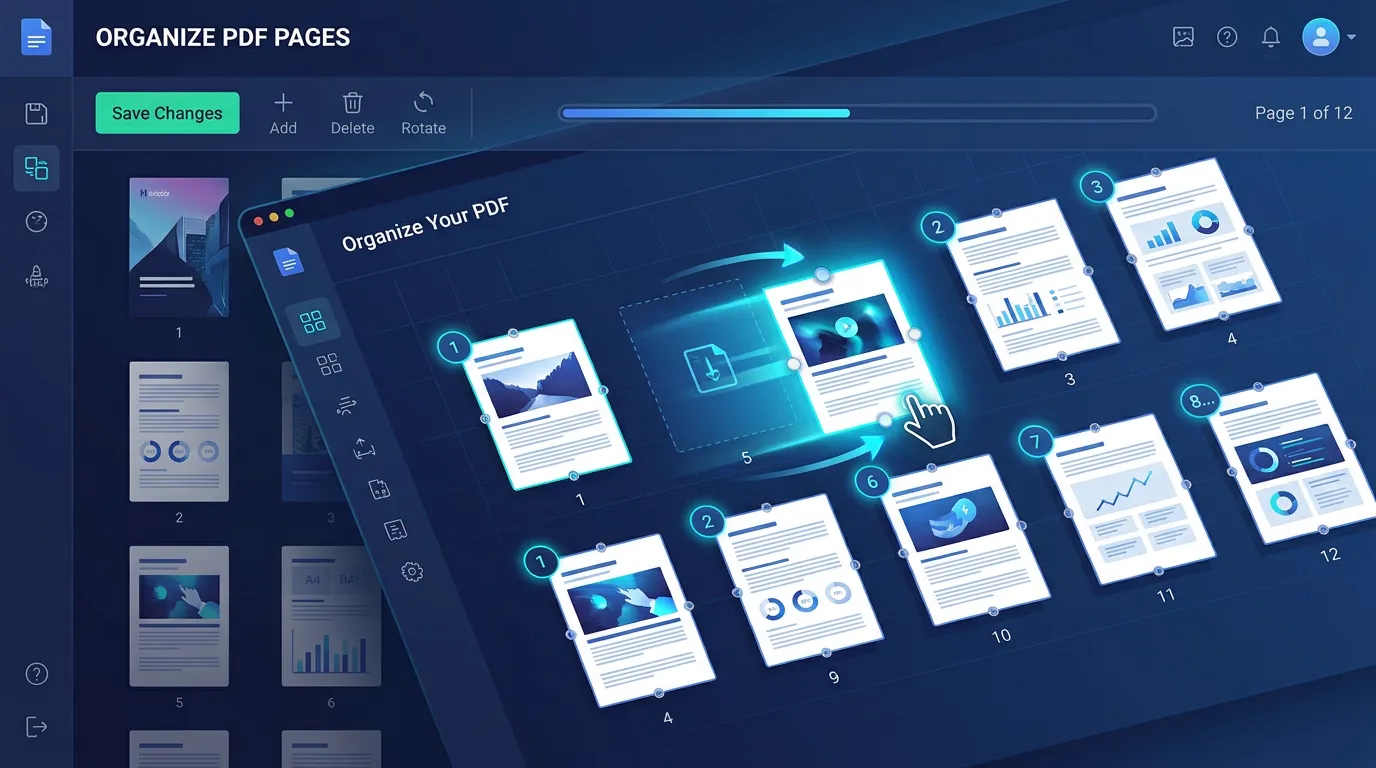
Instead of rebuilding the document, you can organize PDF pages online by moving pages into the correct sequence. This guide explains how to reorder PDF pages, check the final document, avoid common mistakes, and prepare the file for sharing or printing.
Quick Solution: Organize Your PDF Online
Use ToolKiDukan's PDF Organize tool when you need to rearrange, reorder, or clean up the page sequence of a PDF.
How to Organize PDF Pages Online
1. Upload Your PDF
Open the PDF organizer and upload the document. Keep the original PDF as a backup before changing the page order.2. Review the Page Thumbnails
Look through the page previews and identify where each section belongs. This is especially important for scanned documents or files with similar-looking pages.3. Move Pages Into the Correct Order
Move the pages according to the required sequence. Start with the cover or title page, then place the main sections, appendices, and attachments in the intended order.4. Check the Sequence
Review the complete page order from beginning to end. Pay particular attention to pages that were moved across sections.5. Save the Organized PDF
Generate the revised PDF and open the saved file separately. Confirm that the final page sequence is correct before sharing or submitting it.Why Do PDF Pages End Up in the Wrong Order?
Common causes include:
Common Reasons to Reorder PDF Pages
Fix a Scanned Document
Scanned paperwork can be saved in an unexpected sequence. Reordering the pages can restore the original document structure.Arrange a Business Report
A report may need its cover, contents, sections, references, and appendices placed in a specific order.Prepare an Application
Applications often require supporting documents to appear in a particular sequence.Combine and Clean Up Documents
After merging several PDFs, organizing the pages helps turn a collection of files into one coherent document.How to Choose the Correct Page Order
The correct order depends on the document, but a useful review sequence is often:
Always follow the recipient's instructions when a required order is specified.
To avoid mistakes:
Organize PDF Pages Without Losing Important Content
Follow these precautions:
Organize PDF vs. Merge PDF
Merging combines separate PDF files into one document. Organizing changes the order of pages within a PDF.
They are often used together: merge the source files first, then arrange the resulting pages into the correct sequence.
Related ToolKiDukan tool: PDF Merge
Organize PDF vs. Remove Pages
If the document contains pages you do not need, remove those pages rather than simply moving them.
After removing unwanted pages, you can organize the remaining pages into the final sequence.
Related ToolKiDukan tool: Remove PDF Pages
Common PDF Organization Problems and Solutions
A Page Is in the Wrong Section
Move it next to the section it belongs to, then check the pages immediately before and after it.Duplicate Pages Appear
Compare similar pages carefully and remove the duplicate if it is not required.Printed Page Numbers Look Out of Sequence
Check whether the document uses separate numbering for sections, front matter, or appendices. Visible numbering does not always match PDF page position.The Final File Is Too Large
Once the page order is correct, compress the finished PDF if file size is the problem.The Document Needs a Different Page Layout
If the problem is excessive whitespace or page boundaries rather than page order, use a PDF cropping workflow instead.Practical Tips for Organizing PDF Pages
Useful PDF Tools After Organizing
Once the page order is correct, you may need additional cleanup before sharing the file:
Frequently Asked Questions
Can I Organize PDF Pages Online?
Yes. An online PDF organizer can help you rearrange pages without rebuilding the document from scratch.Can I Change the Order of Pages in a PDF?
Yes. Reordering is one of the main uses of a PDF page organizer. Review the final sequence carefully before saving.Can I Organize a PDF After Merging Several Files?
Yes. In fact, merging followed by page organization is a common workflow when several source documents need to become one correctly ordered PDF.Will Organizing PDF Pages Change the Original File?
You can keep the original file unchanged and create a separate organized version. Keeping the source is recommended until you verify the result.Should I Remove Pages Before or After Organizing a PDF?
Either can work, but removing clearly unwanted pages first can make the remaining page order easier to review. For complex documents, choose the sequence that makes verification simplest.Can I Organize PDF Pages on My Phone?
If the PDF organizer works in a mobile browser, you can use it on a phone. A larger screen may be easier for long documents with many pages.Final Thoughts
Organizing PDF pages online is a simple way to turn a mixed-up document into a clear, logical file. It is especially useful after merging files, scanning paperwork, extracting pages, or collecting supporting documents.
For the cleanest workflow, keep the original PDF, review the page thumbnails, arrange the sections in the required order, check the finished document from beginning to end, and then use other PDF tools for removal, cropping, compression, numbering, or protection if needed.