
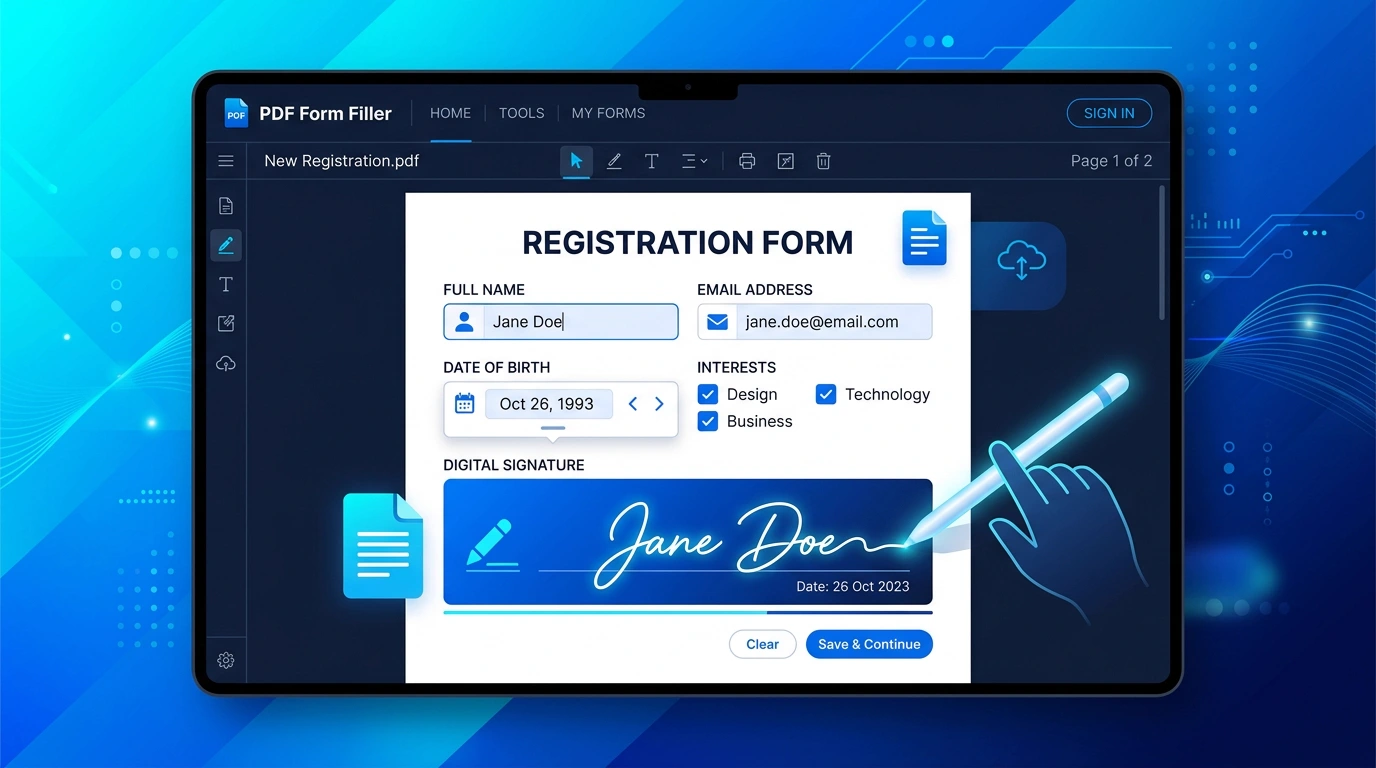
How to Fill Out PDF Forms Online: Add Text, Sign, and Save
PDF forms are commonly used for applications, registrations, invoices, declarations, school documents, business paperwork, and other tasks where information needs to be entered into a fixed document. The frustrating part is that not every PDF behaves like a normal editable document.
If you have received a PDF form and simply need to complete it, you usually do not need to print it, write by hand, scan it again, and email it back. An online PDF form workflow can let you enter information, add required details, review the completed document, and save a copy for submission.
Quick Solution: Fill Out a PDF Online
Use ToolKiDukan's PDF Forms tool to work with PDF forms and complete supported fields without rebuilding the document.
How to Fill Out a PDF Form Online
Follow these step-by-step instructions to fill out your form accurately:
Step 1: Open the PDF Form
Start with the form you need to complete. Save an original copy first so you always have a blank version for your records.Step 2: Upload the Form
Open the PDF Forms tool and upload the document. Give the file a moment to load so you can review its pages and available fields.Step 3: Enter Your Information
Fill in the required details carefully. Depending on the form, this can include:Step 4: Check Every Required Field
Go through the form from the first page to the last. Look for:Step 5: Add a Signature If Required
If the form requires a signature, use the appropriate PDF signing workflow and place the signature where requested.Step 6: Save the Completed PDF
Export or download the completed form. Then open the saved file and verify that your entries and signature are still visible.What Types of PDF Forms Can You Complete?
PDF forms can vary widely. You may encounter:
Some PDFs contain interactive fields that can be selected directly, while others are essentially static pages that require text or other elements to be placed over the document. Your workflow therefore depends partly on how the original PDF was created.
Fillable PDF vs. Non-Fillable PDF
Understanding whether your document is interactive or static determines how you will complete it:
| Form Type | Interactive Elements Present | How to Complete | Typical Examples |
|---|---|---|---|
| Fillable PDF | Yes (Text boxes, checkboxes, radio buttons, dropdowns, date fields) | Click directly into fields and type or select answers | Official online applications, government filings, interactive surveys |
| Non-Fillable PDF | No (Static visual pages or scanned image layers) | Add overlay text, shapes, or checkmarks using a PDF editor | Scanned paper documents, flat image exports, print-only forms |
Fillable PDF
A fillable PDF already contains form fields. These may include:Completing these forms is usually straightforward because the document tells you where information belongs.
Non-Fillable PDF
A non-fillable PDF may look like a form but contain no interactive fields. In that situation, you may need an editing workflow that places text or other elements onto the page rather than simply typing into existing fields.How to Fill Out a PDF Without Making Mistakes
Follow these simple checks to ensure your form is submitted correctly:
For important applications and official documents, this final review can prevent avoidable delays or rejected submissions.
What If the PDF Form Is Not Editable?
One of the most common problems is receiving a PDF that looks like a form but does not allow you to click into the blank areas.
This can happen because:
In that situation, an editing workflow may be more appropriate. You can add text or other elements over the relevant areas, then review the final page to make sure the placement looks natural.
Related ToolKiDukan tool: PDF Edit
How to Add a Signature to a PDF Form
Many forms require a signature after the other fields have been completed. A practical approach is to fill in the form first, review your answers, and then add the signature at the end.
Before submitting, check that:
Related ToolKiDukan tool: PDF Sign
Common PDF Form Problems and Solutions
The Fields Are Not Clickable
The PDF may not contain interactive fields. Try a PDF editing workflow that allows text to be placed directly on the page.Text Does Not Fit Inside a Field
Shorten the response where appropriate or adjust the text size while keeping the answer readable. Avoid making text so small that the completed form becomes difficult to read.A Checkbox Cannot Be Selected
The form may use a static checkbox rather than an interactive control. In that case, use a supported editing method to indicate the selection.The Signature Is Missing After Saving
Reopen the final PDF and verify that the signature was applied correctly before submitting the file.The Completed PDF Is Difficult to Read
Check text size, alignment, spacing, overlapping content, and positioning of inserted elements.The File Is Too Large to Upload
After completing the form, consider compressing the PDF if the receiving service has a file-size limit.Practical Tips Before You Submit a Completed PDF Form
application-completed.pdf.Useful PDF Tools for the Rest of the Workflow
A completed form may require more than just entering information:
| Tool | Primary Purpose | When to Use in Form Workflow |
|---|---|---|
| Edit PDF | Place custom text and shapes | When the PDF is flat, static, or non-fillable |
| Sign PDF | Digital or drawn signatures | Adding legally required signatures to completed forms |
| Compress PDF | Reduce document size | Shrinking completed forms exceeding upload limits |
| Protect PDF | Password encryption | Securing forms containing sensitive personal or financial data |
| Organize PDF | Rearrange page sequence | Structuring multi-page submissions and supporting sheets |
Final Thoughts
Filling out a PDF online can be much faster than printing a form, writing on it, scanning it, and sending it back. The key is to identify whether the document has interactive fields or needs text to be added manually.
For a straightforward workflow, open ToolKiDukan's PDF Forms tool, complete each required field, review the entire document, add a signature if necessary, and save the final PDF. If the form isn't fillable, use the appropriate editing tool instead.