
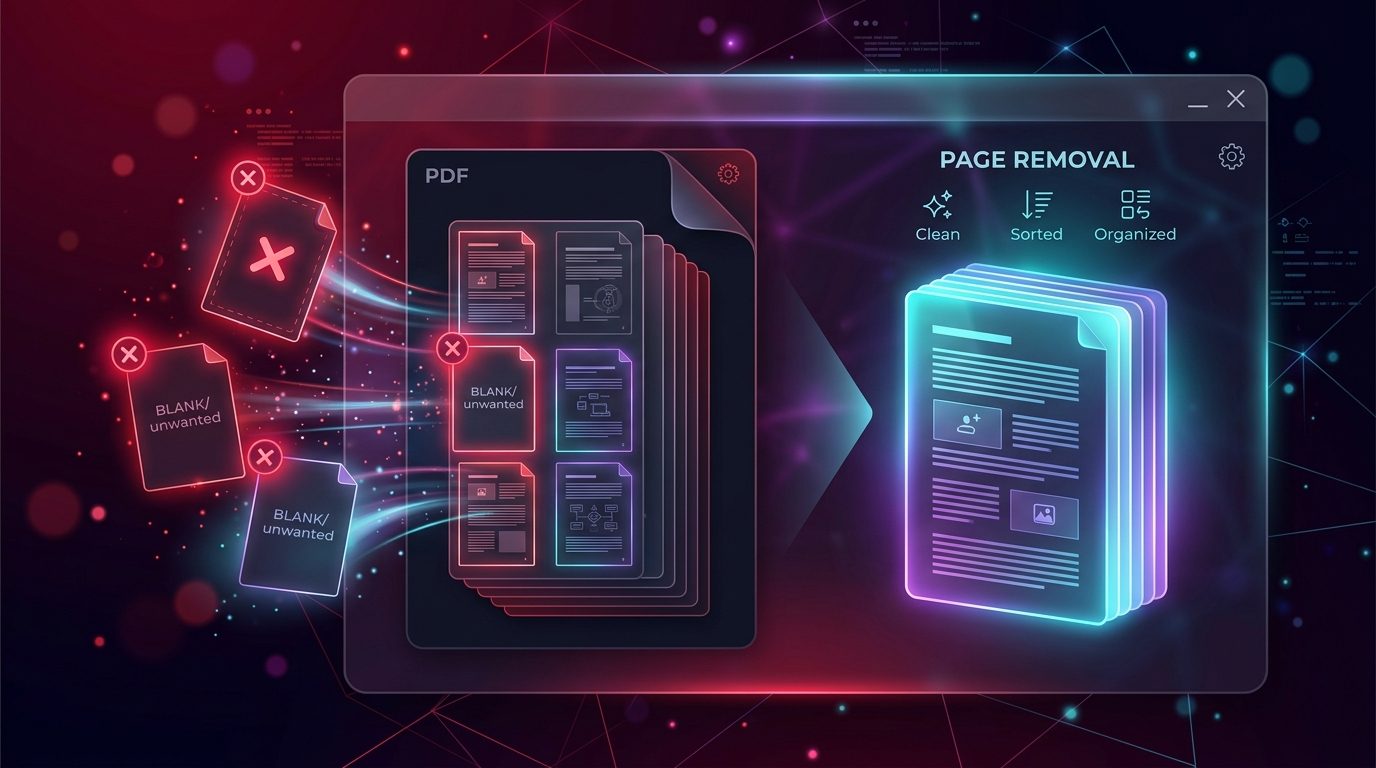
How to Remove Pages from a PDF Online: Delete Unwanted Pages Easily
You Have a PDF With Pages You Do Not Need
A PDF can contain extra pages that you do not want to send, upload, print, or share. Maybe a report includes an appendix you do not need, a scanned document contains blank pages, or you accidentally added the wrong page.
Recreating the entire PDF just to remove one or two pages is unnecessary. You can simply delete the unwanted pages and save a cleaner version of the document.
Quick Solution: Remove PDF Pages Online
Use the ToolKiDukan Remove PDF Pages tool:
👉 ToolKiDukan Remove PDF Pages
Upload your PDF, select the pages you want to remove, create the updated document, and download the cleaned PDF.
How to Remove Pages from a PDF Online
Step 1: Open the PDF Page Removal Tool
Open the ToolKiDukan PDF page removal tool in your browser and have the correct PDF ready.Step 2: Upload Your PDF
Select the PDF containing the pages you want to delete.Before editing, keep a copy of the original file. This gives you a backup if you later realize that you removed a page by mistake.
Step 3: Select the Unwanted Pages
Review the document and identify the pages you no longer need.For example, if a 12-page PDF contains unwanted pages 4 and 9, select those pages for removal.
Step 4: Remove the Selected Pages
Start the page-removal process. The selected pages will be deleted from the resulting PDF.Step 5: Download and Review the PDF
Open the new PDF and confirm that:Why Would You Need to Delete Pages From a PDF?
How to Choose Which PDF Pages to Remove
Do not rely only on page numbers. Open the PDF and check the actual content of each page.
- A useful approach is:
- Identify the pages you need to keep.
- Identify pages that are blank, duplicated, or irrelevant.
- Double-check important documents and signatures.
- Remove only the pages you are certain you do not need.
- Review the final PDF from beginning to end.
This is especially important when dealing with official or multi-page documents.
What to Do Before Removing PDF Pages
Keep the Original PDF
Always save the original before making changes.- For example:
application-original.pdfapplication-cleaned.pdf
This makes it easy to restore a page if necessary.
Check for Required Signatures
If the PDF contains contracts, applications, approvals, or signed documents, make sure you do not remove a page containing a signature or important authorization.Check Page Numbers
Printed page numbers and PDF page positions are not always the same. A page labeled "5" inside a document might be the sixth PDF page if the first page has no printed number.Review the actual page before deleting it.
What If the PDF Is Still Too Large?
Removing unnecessary pages can reduce file size, but image-heavy PDFs may remain large.
If the cleaned PDF is still too large for an upload limit, compress it with ToolKiDukan:
This is useful for scanned PDFs and documents containing many high-resolution images.
Remove Pages vs Split PDF
These tools are useful for different situations:
| Tool | Purpose |
|---|---|
| Remove PDF Pages | Use when you want to delete specific pages and keep the rest of the document together. |
| Split PDF | Use when you want to divide one large PDF into separate documents or page ranges. |
Remove Pages vs Extract Pages
If you want to keep only a few pages and discard everything else, extracting those pages can sometimes be more convenient.
For example, if a 100-page report contains only five pages you need, extracting those five pages creates a focused document without requiring you to identify every page to delete.
👉 ToolKiDukan PDF Extract Pages
Common Problems When Removing PDF Pages
I Removed the Wrong Page
Keep the original PDF and create a new edited copy rather than overwriting your source file.The Pages Are No Longer in the Expected Order
Check the resulting document from the beginning. If a page was removed incorrectly, recreate the cleaned version from the original.The PDF Is Still Too Large
Compress the PDF after removing unnecessary pages.I Have Blank Pages in the Middle of the PDF
Identify the blank pages and remove them. Then review the final document to ensure the surrounding pages are still correct.Practical Tips for Removing PDF Pages
Frequently Asked Questions
How can I remove pages from a PDF for free?
Use an online PDF page removal tool. Upload the PDF, select unwanted pages, remove them, and download the updated document:👉 ToolKiDukan PDF Page Removal Tool
Can I delete multiple pages from a PDF at once?
Yes, when the tool supports selecting multiple pages, you can remove several unwanted pages during the same editing process.Can I remove a page from the middle of a PDF?
Yes. You can remove a specific page from the middle of a document while keeping the other pages.Will removing PDF pages change the original file?
Keep your original file as a backup and save the cleaned version separately. This gives you a way to recover the original document if needed.How do I remove blank pages from a PDF?
Open the PDF, identify the blank pages, select them for removal, and create a new PDF without those pages.Can removing pages reduce PDF file size?
Yes, removing pages eliminates the content stored on those pages. The amount of reduction depends on what the pages contain. Image-heavy pages generally contribute more to file size than simple text pages.What if I only need a few pages from a large PDF?
Use a PDF page extraction tool to create a new document containing only the pages you need.Final Thoughts
You do not need to recreate a PDF just because it contains a few unwanted pages. Removing blank, duplicate, irrelevant, or unnecessary pages can quickly produce a cleaner document that is easier to share and upload.
Before deleting anything, keep the original PDF and carefully review the pages you plan to remove. Afterward, open the finished document and verify that all required content is still present.
Use the ToolKiDukan Remove PDF Pages tool:
👉 Remove Unwanted PDF Pages with ToolKiDukan