
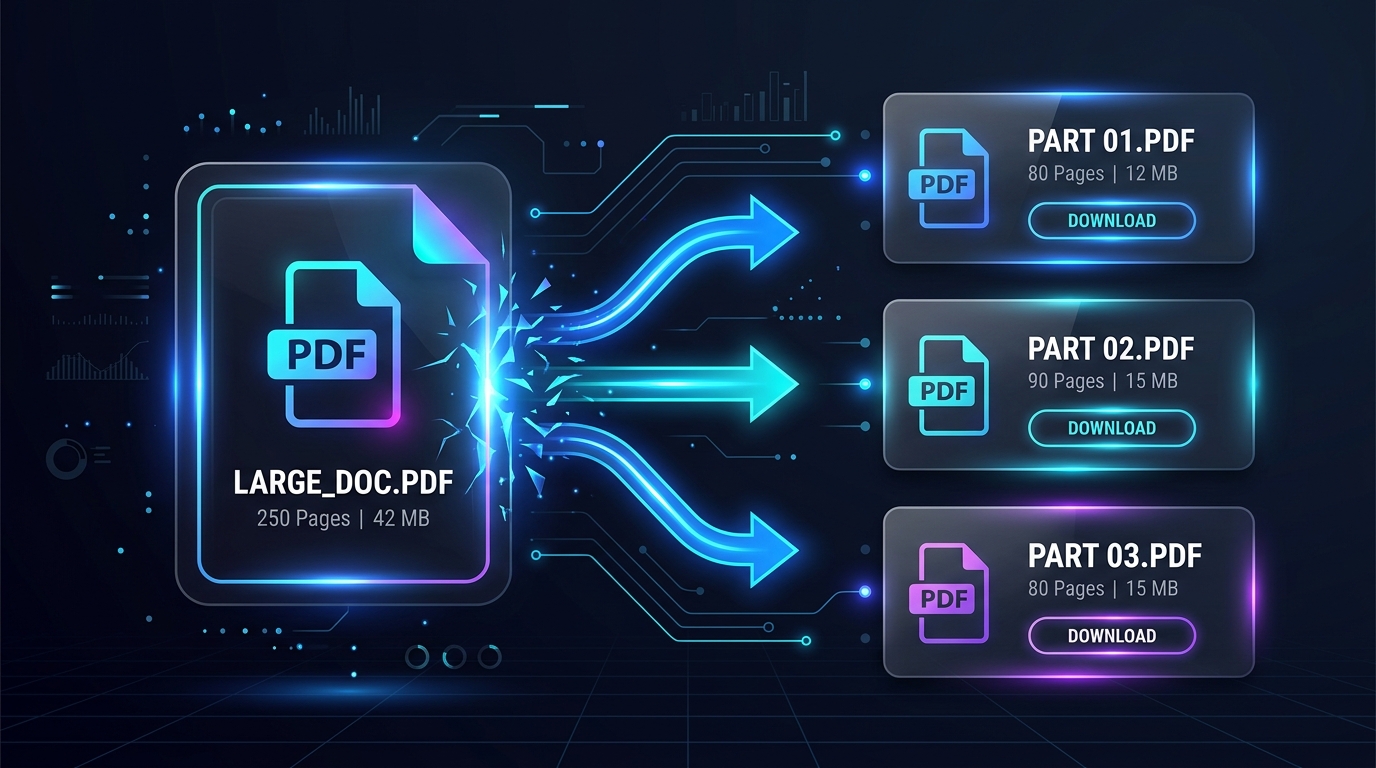
How to Split a PDF Online: Separate Pages Into Smaller PDF Files
You Have a Large PDF, But You Only Need Part of It
A PDF can contain dozens or hundreds of pages even when you only need a small section. Maybe you received a complete report but need only one chapter, or you have a scanned document and need to send just a few pages.
Sending the entire file can be inconvenient, especially when a website has a file-size limit or the recipient needs only specific information. In these situations, splitting the PDF can give you smaller, more useful files.
Quick Solution: Split Your PDF Online
Use the ToolKiDukan PDF Split tool to separate a large PDF into smaller files:
Upload the PDF, choose how you want to divide it, create the smaller files, and download the results.
How to Split a PDF Online
The basic workflow is straightforward.
Step 1: Open the PDF Split Tool
Open the ToolKiDukan PDF Split tool in your browser and have the PDF ready.Step 2: Upload the PDF
Select the PDF you want to divide. If it is a very large document, make sure you are working with the correct version before starting.Step 3: Choose the Pages or Sections
Decide what you want in each resulting file. You might split a 50-page document into smaller ranges, or keep only a particular set of pages.Step 4: Create the Smaller PDFs
Start the split process. The selected pages will be separated into new PDF files according to the chosen structure.Step 5: Open and Check the Results
Open the generated PDFs and verify:Why Would You Need to Split a PDF?
How to Split a PDF by Page Range
- Suppose you have a 30-page PDF and want three separate files:
- File 1: pages 1–10
- File 2: pages 11–20
- File 3: pages 21–30
The key is to plan the page ranges before splitting. This reduces mistakes and makes it easier to name the output files clearly.
How to Extract Only the Pages You Need
Splitting and extracting are related, but your goal may be different.
If you need only pages 8, 12, and 15 from a large document, you may not need to divide the entire PDF into multiple sections. Instead, extract the required pages into a new document.
Use the ToolKiDukan PDF Extract Pages tool:
👉 ToolKiDukan PDF Extract Pages
How to Make a Split PDF Easier to Organize
Use Descriptive File Names
Instead of names such assplit-1.pdf and split-2.pdf, use names that explain the contents when possible.
- For example:
report-introduction.pdfreport-results.pdfreport-appendix.pdf
Keep the Original PDF
Do not delete the source file immediately. Keeping the original makes it easy to create a different page range later.Check Page Order
Open each new file and confirm that its pages appear in the intended sequence.What If the Split PDFs Are Still Too Large?
Splitting does not necessarily make every output file small enough for an upload limit. Image-heavy or scanned pages can still create large files.
If a resulting PDF is too large, compress it with the ToolKiDukan PDF Compress tool:
Split PDF vs Merge PDF
These tools do opposite jobs:
| Tool | Purpose |
|---|---|
| Split PDF | Use when you want to divide one PDF into smaller documents. |
| Merge PDF | Use when you have multiple PDFs and want to combine them into one document. |
Common PDF Splitting Problems
I Split the Wrong Page Range
Check the page numbers before starting and keep the original PDF so you can repeat the process if needed.The Output Files Have Confusing Names
Rename the files based on their contents or page ranges immediately after downloading them.The Split File Is Still Too Large
Compress that output file or remove pages that are not required.A Page Is Missing
Open the original document and compare it with the output. If you selected the wrong range, repeat the split using the correct pages.Practical Tips for Splitting PDFs
Frequently Asked Questions
How can I split a PDF into multiple files?
Upload the PDF to a PDF splitting tool, choose the page ranges or sections, create the output files, and download them.Can I split a PDF without installing software?
Yes. An online PDF splitting tool can let you divide a document directly in a web browser.Can I split a PDF into individual pages?
Yes, when the tool supports page-by-page splitting. A multi-page PDF can be divided so each page becomes its own PDF file.Can I split only certain pages from a PDF?
Yes. If you need a specific selection rather than the entire document divided into sections, use a page extraction tool when appropriate.Will splitting a PDF change the original file?
The original file should remain available as your source document. Keep a backup so you can create different splits later.Why is my split PDF still large?
A split file can still contain large scanned images or high-resolution graphics. Compress the resulting PDF if necessary.Final Thoughts
Splitting a PDF is useful when a large document contains more information than you need to send, upload, or organize at once. By choosing the right page ranges and checking the resulting files, you can turn one long PDF into smaller, more practical documents.
If you need only selected pages, consider extracting those pages instead of splitting the entire file. If the resulting PDFs are still too large, compress them before uploading or sharing.
Use the ToolKiDukan PDF Split tool:
👉 Split Your PDF with ToolKiDukan